As a Reseller Admin you now have the ability to login to a user's account to manage their settings and help troubleshoot issues.
How to login as a user:
- Navigate to your reseller admin portal
- Select the company where the host account is located that you need to login to
- Click 'Hosts' in the left sidebar panel
- Select 'Login as User' next to the host account you want to access (right arrow icon)
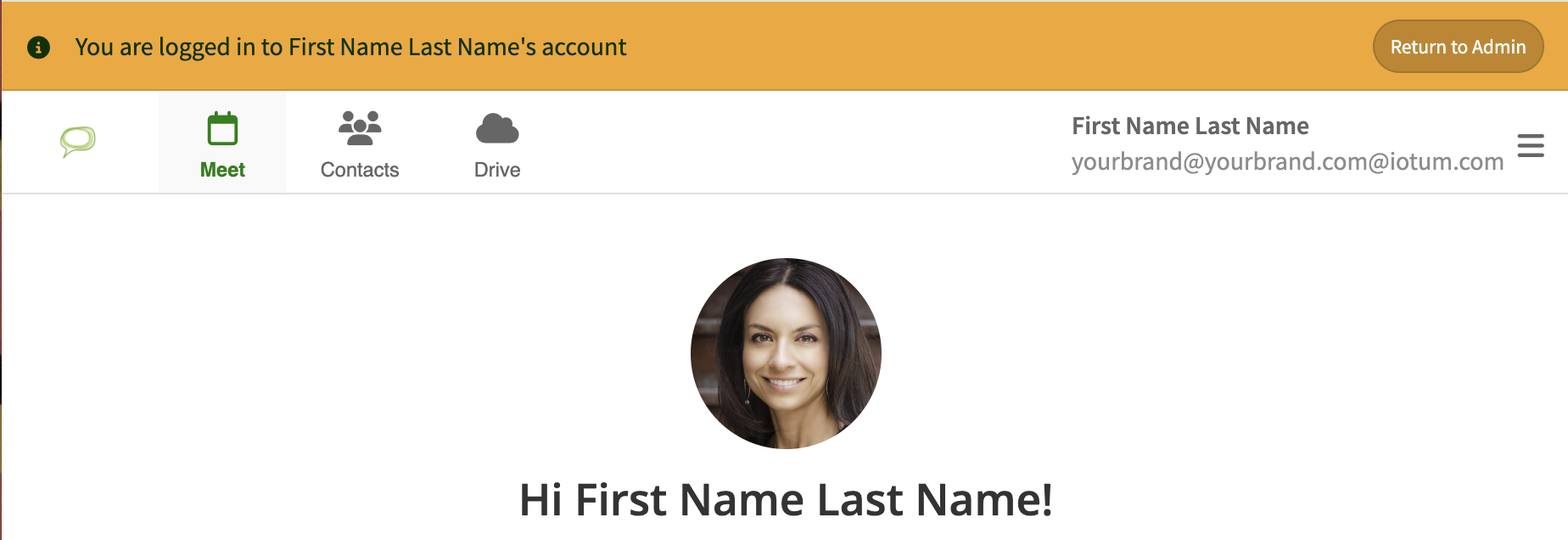
- You will see an orange banner at the top of your window explaining that you are now logged into another user's account
- Click 'Return to Admin' when you are done
As part of our commitment tu users' privacy, our audit log will record who has accessed host accounts and any activity such as if a recording was played and what settings may have been changed.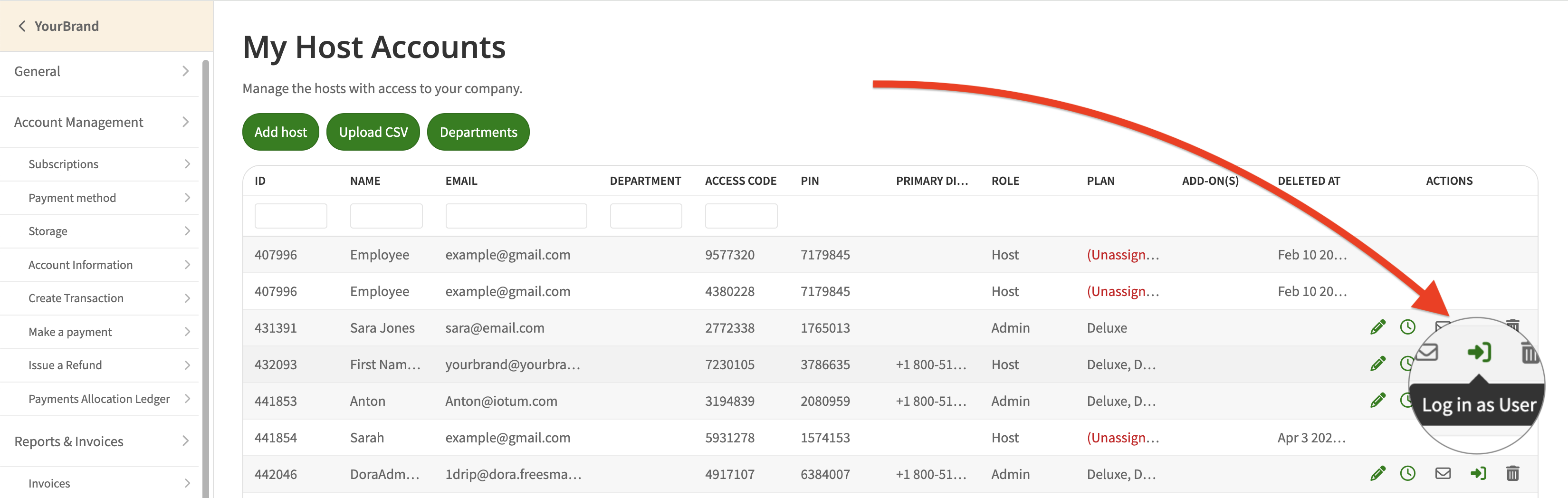
When would I need to login to a user's account?
- Changing settings that can't be done as a company or reseller admin.
- To view the user's account as they would view it if they have reported issues. For example, if a button is not appearing that should normally be there, or if they see a warning banner that is not visible as an admin.
- To manage the user's drive files. For example, if a user has requested that you delete a file on their account on their behalf.
Please be aware that when using this feature you are adhering to your own company's internal policies regarding accessing the private data of your customers.
What can't I do when logged in to a user's account?
- View or change a user's password
- View a meeting summary, in-call chat history, or meeting transcripts
Was this article helpful?
That’s Great!
Thank you for your feedback
Sorry! We couldn't be helpful
Thank you for your feedback
Feedback sent
We appreciate your effort and will try to fix the article