Please always provide the following to locate the account:
- Meeting ID: Admin portal → Meeting summaries → Meeting Summary ID
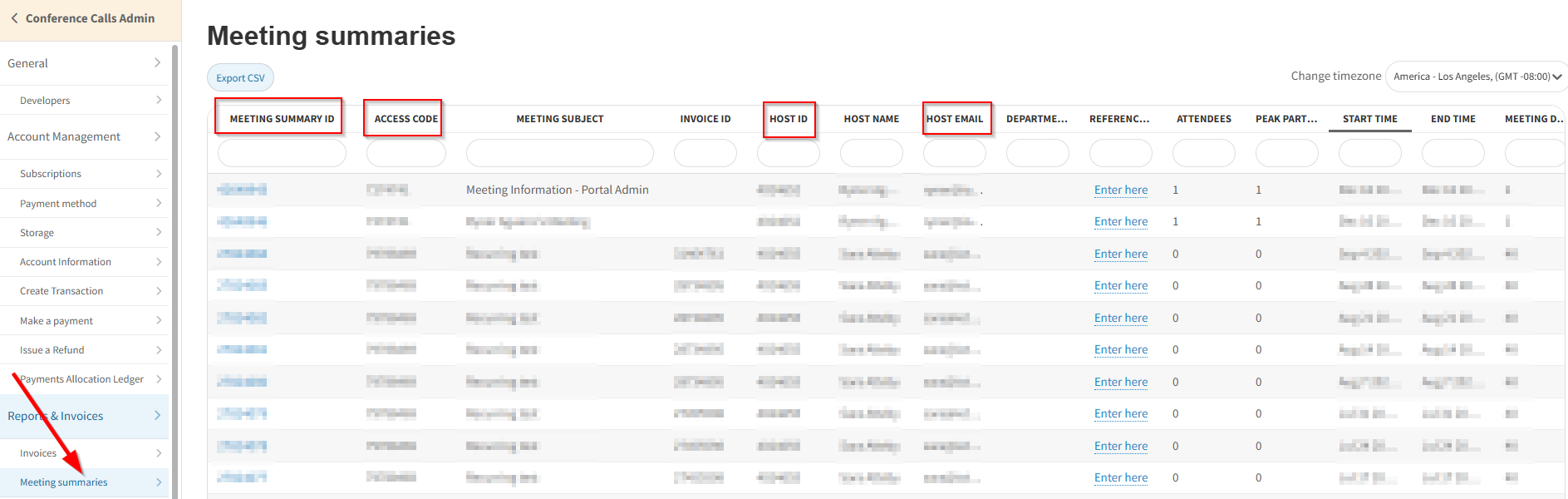
- Host ID
- Access Code
- Host email address
- Date & Time (including time zone) of the conference
If users need help with the following features, please provide as much information as possible. If recordings are available, please request permission (where possible) to allow us to listen to/view recordings to understand issues better.

Ask the user if this problem happens consistently for almost ever type of issue.
If yes, ask for more examples of the issue so we can have more data to diagnose what is happening. Provide as many sample meetings with the information above as possible.

Are you able to reproduce problems that sound like bugs?
Troubleshoot:
Safari or Firefox
If the participant who experienced a problem was using Safari or Firefox, ask the user to have that participant install our Mobile or Desktop app.
How to Find Callers' Browser Information in Beacon
Participants are prompted to install our apps when joining meetings on those browsers.
Video Quality or Screen Sharing issues
If there was an error message, what was the Error Number?
- Description of problem: The most important information is to determine who experienced the poor video quality and what precisely the problem was. Make sure to collect the following information:
- Whose video was having the problem?
- Did everyone else see the problem or only specific participants? If specific participants, who?
- Some common issues participants will raise are the following:
- Blurry or low-resolution video
- No video from a specific participant
- Unable to send video
- Camera not accessible (Troubleshooting tips)
- Spinner instead of video for participant
- Could not share screen (Troubleshooting tips)
File Sharing
- Description of problem
- Selecting a file
- Uploading
- Presenting
- Type of document being shared (jpg, pdf, Word, PPT, etc.)
- Using custom fonts, proprietary images, etc. Replicated consistently. If so, can it be recorded and shared
- Which participant was trying to share their screen
Web Audio (WebRTC)
- Description of problem: The most important information is to determine who experienced the poor audio quality and what precisely the problem was. Make sure to collect the following information:
- Whose audio was having the problem
- Did everyone else hear the problem or only specific participants? If specific participants, who?
- Some common problems are:
- Static
- Echo (Troubleshooting tips)
- Could not hear
- Could not be heard by others
- Some common reasons for audio issues are:
- Volume off on computer/phone
- Permission to microphone blocked (Troubleshooting tips)
- Microphone hardware muted on the device
- Soft muted (conference mode) (How to find muting events in Beacon)
Telephone/Dial-in number
- ANI
- Caller's phone number
- Carrier if possible
- DNIS (Conference Dial-in number)
- Description of problem
- Static
- Echo
- unable to connect
- touch-tone
- Replicated consistently. If so, can it be recorded and shared
Was this article helpful?
That’s Great!
Thank you for your feedback
Sorry! We couldn't be helpful
Thank you for your feedback
Feedback sent
We appreciate your effort and will try to fix the article